
1. What you can do on this page #
Scraper Center allows you to do two things:
- Enter your API Key, target URL, and scraping parameters under
Start scrapingto initiate an online debugging request directly. - View request volume, success rate, costs, and average response time for a specific time range under
Statistics.
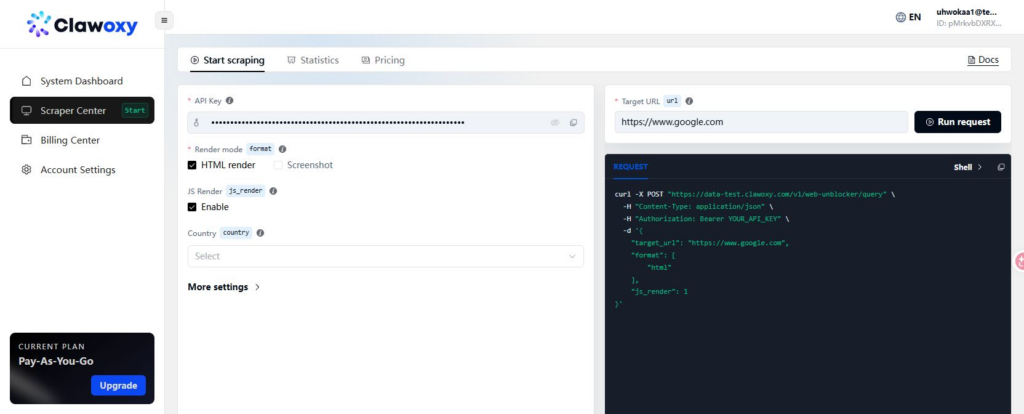
The image below shows the core area of the Start scraping page:
2. What to prepare before starting #
- You have topped up your wallet or purchased a plan;
- A valid
API Key; - A full target page URL (must include
http://orhttps://); - A clear idea of the desired output:
HTML,Screenshot, or both;
Tip: For customers who have already purchased a plan, if you see Plan quota used in the plan section at the bottom-left corner of the page… up, this indicates that your current plan quota may be exhausted. Even if the page loads, subsequent debugging and statistics could be affected; please top up your wallet or purchase a plan first.
3. How to initiate your first scraping request #
We recommend following these steps:
- Ensure you have topped up your account or purchased a plan, and that an
API Keyhas been generated; - Navigate to
Scraper Centerin the left-hand menu and ensure the top tab is set toStart scraping; - Enter the target URL in the
Target URLfield and clickRun requeston the right;
The dark-themed code area on the right will simultaneously display the sample request code corresponding to your current debugging request, making it easy to transfer your online debugging parameters to your server-side application.
Additional settings:
- Select the
Render modeas needed:HTML render: Returns the page HTML; suitable for structure extraction, field parsing, and selector debugging.Screenshot: Returns a screenshot of the page; suitable for verifying the actual rendered appearance of the page.
JS Render set to Enable;Country; no selection is required by default, as we will automatically match you with a country offering a high success rate based on our testing;4. How to determine if the request was successful #
Once the request is sent, the result will be displayed at the bottom of the page. For HTML render, the system directly displays the scraped page source code; if the content is large, the interface will indicate that the raw content is being displayed.
To determine if a request has been largely successful, look for these indicators first:
- The
RESPONSEresult area appears at the bottom of the page - You can see the HTML or screenshot returned by the target site
- No obvious error messages appear, such as
request failed
If you are scraping a public webpage, successfully retrieving the full HTML usually indicates that the connection is established; you can then proceed to code integration or review the usage statistics.
5. Recommended Workflow #
If this is your first time integrating the service, we recommend following this sequence:
- Start by performing online debugging with a public webpage in the
Start scrapingsection. - Verify that the HTML or screenshot is returned correctly.
- Copy the sample request code shown on the right and integrate it into your own server.
- Check the
Statisticssection to confirm that the request has been logged for the day. - For long-term operation, regularly monitor the success rate and average response time.
The advantage of this workflow is that you can first confirm feasibility—”can it be scraped?”—and immediately verify that the activity is being tracked.


